

Overview
mTLS (Mutual TLS) is an opt-in enhanced security feature of Trulioo's API, configurable by customers at the parent account level. This means that you can create and manage your mTLS client certificates, and choose to enforce mTLS, across your entire organization.
Pre-requisites
Before you get started, make sure you have the following:
- A Trulioo normalized API
- A "Manage mTLS" Customer Portal user account
Ensure that mTLS Role is assigned to the account that is managing the mTLS certicate - A Trulioo client Certificate - Refer the Generating a Trulioo client certificate section to learn how to generate one.
Connecting to NAPI with mTLS
To connect to Trulioo NAPI v3 via mTLS you should prepare yourself to access two distinct endpoints as described below:
- mTLS endpoint for Authentication with Trulioo:
mtls-auth-api.trulioo.com- Use this endpoint to generate the authentication token required to access Trulioo services over NAPI v3 with mTLS
- mTLS endpoint for using Trulioo Services via NAPI:
mtls-api.trulioo.com- Use this endpoint to send request to Trulioo's services and receive the response back from them using mTLS
To access these endpoints you should have a valid Trulioo client certificate (see below).
Trulioo client certificates
In order to establish an API connection using mTLS, you will need to install a valid Trulioo client certificate on the server you use to connect to Trulioo.
This certificate must be generated and provided by Trulioo. Client certificates generated for an account can only be used by API users within that account and cannot be shared with other organizations.
Organizations can have up to five live Trulioo client certificates associated with their account at any given time for connections using mTLS. This is to facilitate the use of different client certificates on sandbox/demo environments and production, and so that there is no need for downtime when a certificate expires.
Generating a Trulioo client certificate
To generate a Trulioo client certificate, you should
- Generate a Certificate Signing Request (CSR) using a private key
- Upload the CSR to Trulioo by logging into the Trulioo Customer Portal the "Manage mTLS user" credentials and follow the prompts to upload your CSR
- Download the generated Trulioo certificate. and use it on your server
In order to establish an API connection using mTLS, you will need to install this Trulioo client certificate on the server you use to connect to Trulioo.
Creating a Certificate Signing Request (CSR)
- Install OpenSSL on your computer if it isn't already installed. OpenSSL is preinstalled on Mac and Linux.
- Open a terminal on your computer and navigate to the location you want to save your private key and certificate to.
- Enter the following command. You can replace "server" with your common name or the domain name you intend to secure or any other file name.
openssl req -new -newkey rsa:2048 -keyout server.key -out server.csr- You will then be prompted to enter your CSR information. Enter the details in the table below. You can opt to skip the rest. Note the following characters are not accepted: < > ~ ! @ # $ % ^ * / \ ( ) ?,&
- You will be prompted to add a password or passphrase. You are not required to enter a password or passphrase but this will apply an additional layer of security to your key pair.
- Your CSR and key will now be saved to the location you selected. Ensure your private key is kept safe. If you lose your private key you will need to generate a new client certificate.
| Input type | Input |
|---|---|
| Country: | The official two letter ISO country code of the country where your organization is incorporated e.g. CA. |
| State/Province: | The state or province where your organization is incorporated e.g. British Columbia. Do not abbreviate. |
| City/Locality: | The city or locality where your organization is incorporated e.g. Vancouver. Do not abbreviate. |
| Organization name: | The full legal name of your organization. |
| Common name | The domain name you want to secure with this certificate that will be connecting to Trulioo. This must be a fully qualified domain name (FQDN) e.g. services.company.com but does not need to be a published DNS name. Trulioo can support subject alternate names if required, but will not issue wildcard certificates. |
Testing mTLS with Postman
The below steps are required for both mTLS endpoint for Authentication as well as the mTLS endpoint for using the services
If you are using a proxy, please make sure to configure it in Postman
Adding a client certificate in Postman
-
Open Postman.
-
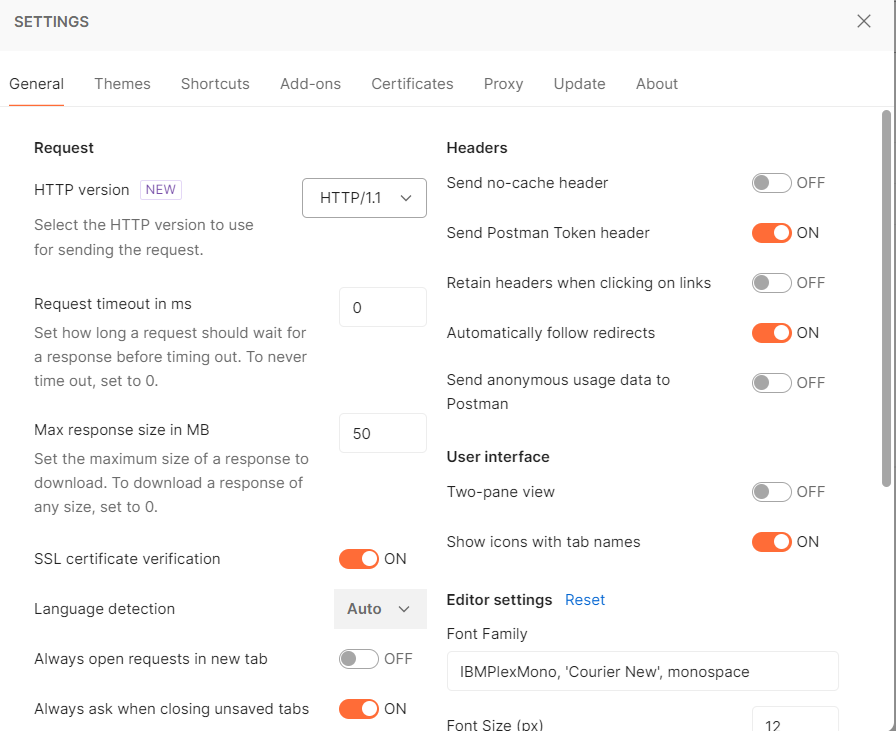
Select the Gear icon in the header and select Settings.

-
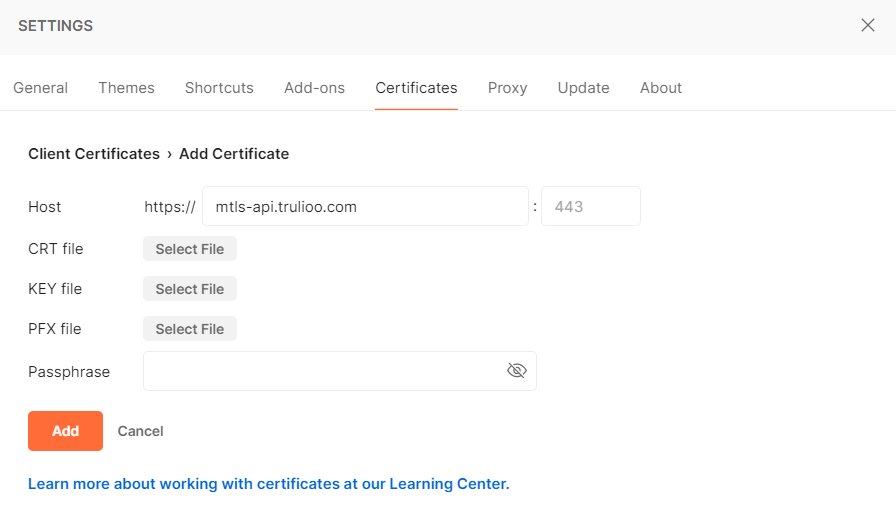
Select the Certificates tab and click the Add Certificate link. You will need to do this twice.
- For the authentication endpoint, use
mtls-auth-api.trulioo.com
- For services endpoint use
mtls-api.trulioo.com
-
Enter the appropriate mTLS endpoint in the Host field.
-
Click the Select File button next to CRT file to add the client certificate generated by Trulioo and downloaded from the Customer Portal.
-
Click the Select File button next to KEY file to add the private key paired with this certificate.
-
If you used a Passphrase when generating your Certificate Signing Request, enter it in the Passphrase field. Otherwise, leave this blank.
-
Note, you can use the same key and certificate for both the endpoints for convenience
-
Select Add to save.
- For the authentication endpoint, use
Creating a request and testing the connection.
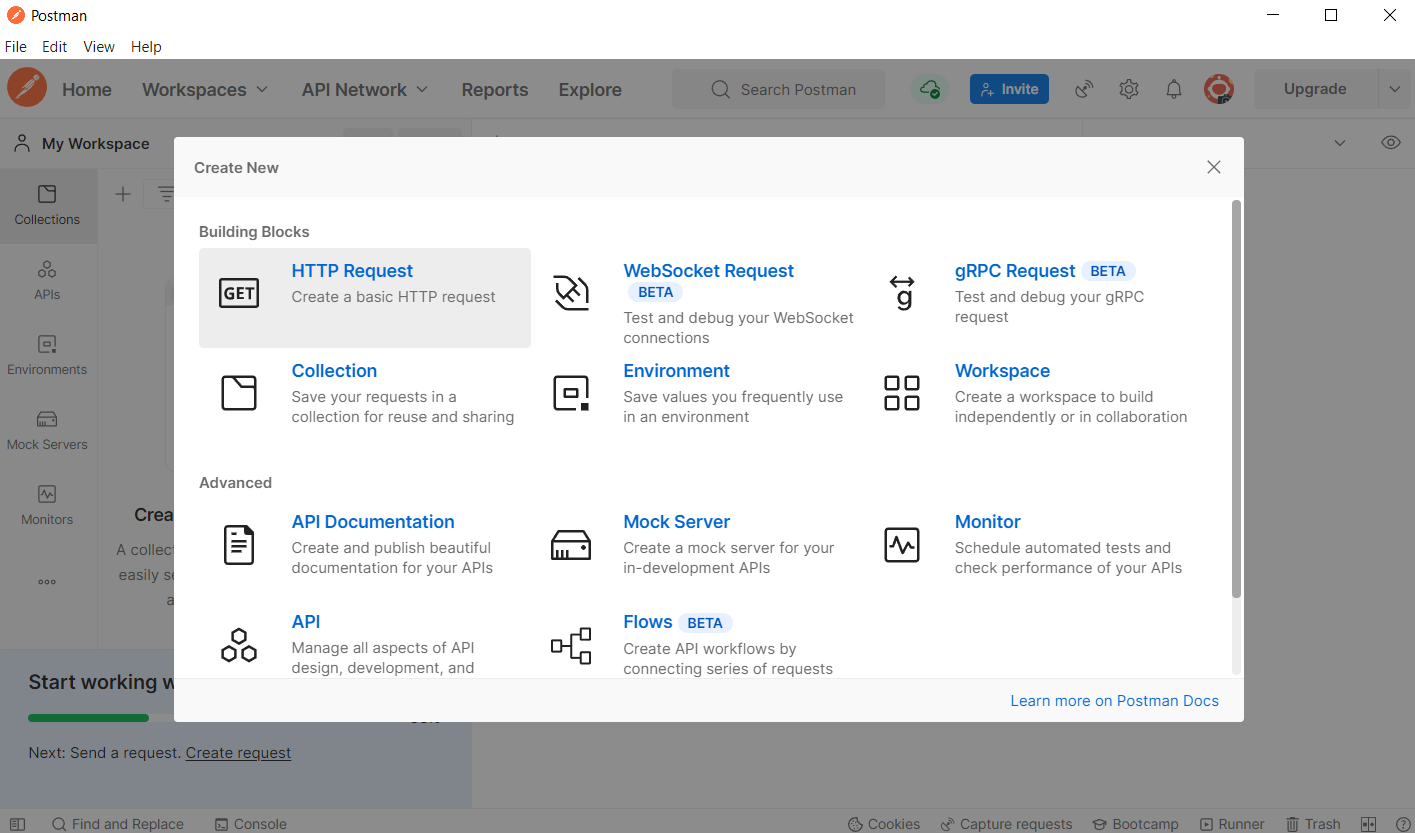
- Select the New button in the sidebar and click HTTP Request.
To test the connection, you will need the authentication token from the authentication endpoint. Following the below steps
- Steps for getting the authentication token from the mTLS Authentication endpoint
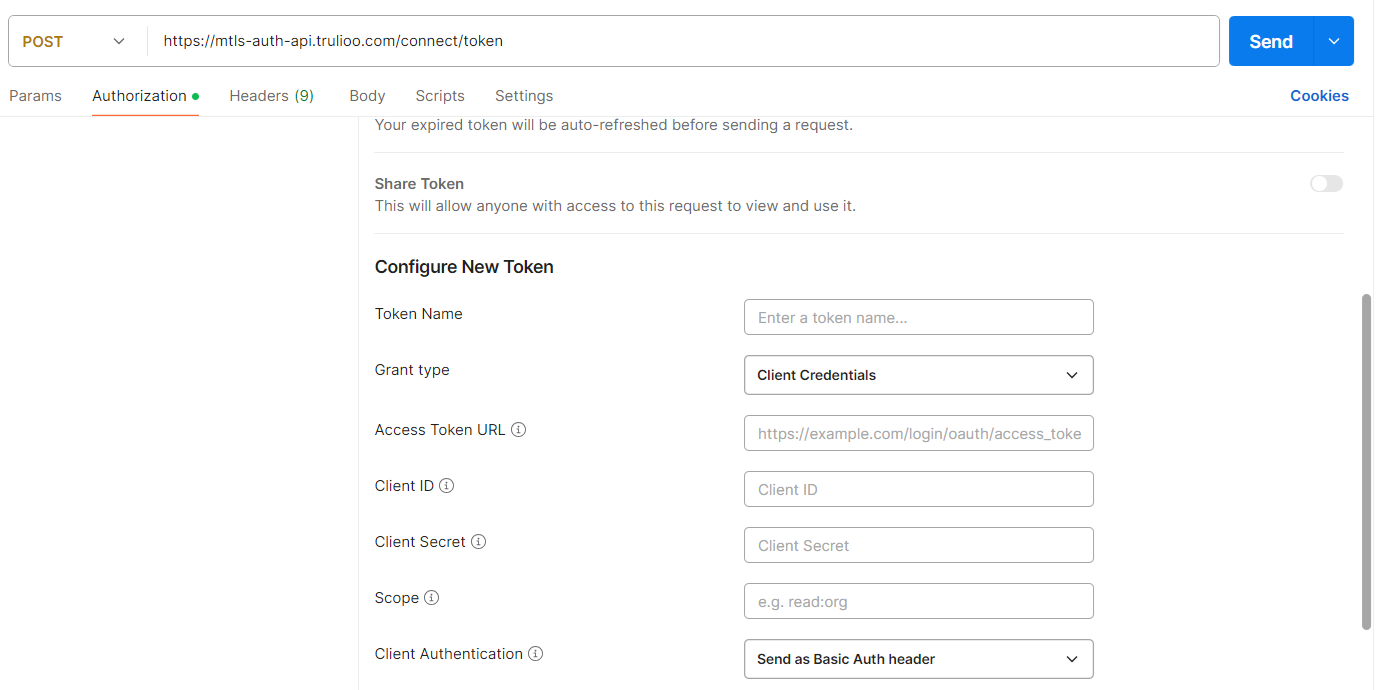
- Provide the following URL in the Enter request URL field:
mtls-auth-api.trulioo.com/connect/token. See Authentication for further details.- In the request Auth tab, select OAuth 2.0 from the Type dropdown list.
- Select Grant Type as Client Credentials
- Enter your Trulioo Client Id and Client Secret in the appropriate fields.
- Hit send and you will receive the access token in the response
- Provide the following URL in the Enter request URL field:
- Testing the connection
- Provide the following URL in the Enter request URL field:
mtls-api.trulioo.com/v3/connection/testauthentication- Send the request using the access token that you received from the mTLS authentication endpoint and verify that you are able to connect to the endpoints using mTLS
- Provide the following URL in the Enter request URL field:
Implementing mTLS
cURL (Example)
Add --cert and --key to your cURL command. If your private key is protected with a passphrase, enter it after the ":" in the --cert value.
curl --request GET \
     --url mtls-api.trulioo.com/v3/connection/testauthentication \
     --header 'Accept: application/json' \
     --header 'authorization: Bearer ••••'
     --cert './path/to/certificate':'passphrase, if any' \
     --key './path/to/key'