---
updatedAt: 2026-11-03T10:05:50.000Z
agentTools:
projectIndex: https://developer.trulioo.com/llms.txt
---
# Testing an eID workflow with test entities
If you start the test from Workflow Studio, the following is required:
* A valid workflow: workflow validation errors must be resolved before the test can start.
* An Electronic Identification (eID) node configured with a provider that supports provider-level test entities.
* Test Entities selected.
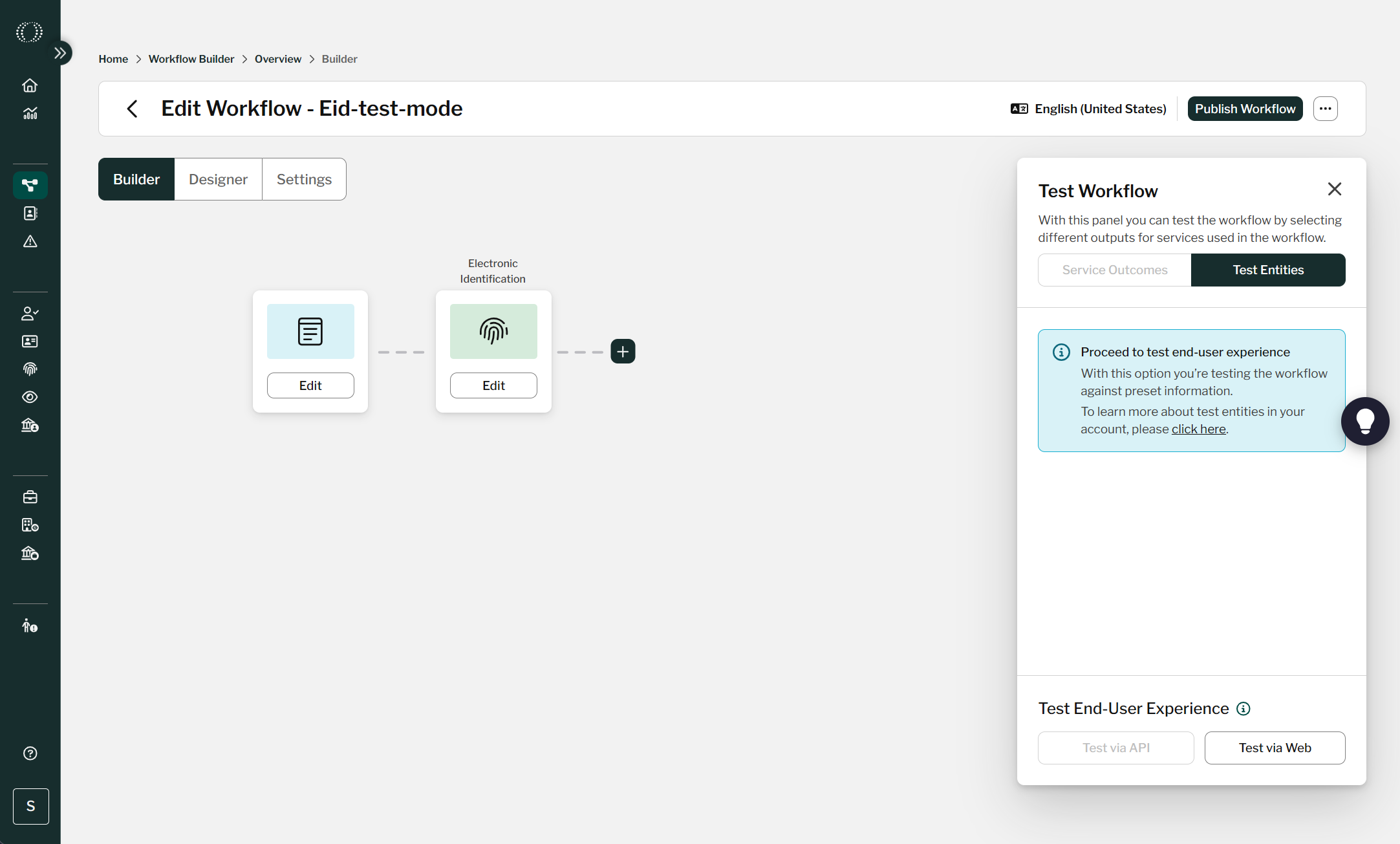
## Completing the eID test experience
When the workflow is launched in the browser, complete the hosted journey as an end user per these steps. Note the exact provider screens vary.
1. Progress to the eID step.
* Complete any earlier workflow steps until the Electronic Identification screen appears, either via API or via the hosted experience.
2. Confirm the test provider opens.
* For a supported country and scheme, Workflow Studio redirects you to the real eID provider in its test environment or test verification profile. This does not perform a live identity verification.
3. Enter the provider's test details (where applicable).
* Use the test credentials and instructions supplied for the selected eID scheme (see below for details). Do not enter a real person's identity information.
4. Choose or simulate the required result (where applicable).
* Where the provider test screen offers an outcome, select the result needed for your test, such as a successful verification, and continue through the provider prompts.
5. Review editable identity data (where applicable).
* If the provider test flow allows it, update the fields needed to exercise your workflow rules.
6. Return to the workflow and finish.
* After the provider completes, you are redirected to the hosted workflow. Complete any remaining steps and reach the workflow completion screen.
7. Verify the test transaction.
* Confirm the test end client appears in Client Manager and review the returned eID service data and match result.
**Unsupported country:** If the selected country or eID scheme does not support test entities, the experience displays an error but will let the user choose another country and continue.
### **Providers that support test entities**
IDIN (Netherlands)
SPID (Italy)
BankID (Sweden)
Czech Bank Id
mitID (Denmark)
BankID (Norway)
CPF (Brazil
National ID (Philipines)
National ID (South Africa)
National eID (Zimbabwe)
## Test entities
All testing happens in the Test environment. Verifications in the Test environment fail if a real credential is used, and test credentials never work in the Live environment.
Some of these providers require permission/registration before they can be activated.
### iDIN (Netherlands)
Select Rabobank iDIN as the bank.
On the details page, click Submit.
Test data for the verification session is returned at the end of the flow.
### SPID (Italy)
Select the spid provider.
Sign in with one of the test accounts below, then click Conferma.
* Level Nome utente Password
* 1 cesare password123 Fails by default — does not meet the requested SPID level of 2
* 2 ada password123
* 3 marcopolo password123
### BankID (Sweden)
Testing requires a test BankID issued from BankID's own developer environment, and a device configured for that environment.
Go to the BankID Developer Portal and click Issue BankID.
If the test portal doesn't load, try a different network (mobile hotspot or VPN). Some ISPs have routing issues to the BankID test environment; it isn't a device or browser problem.
Click Personal code to request a code to set up an account.
Click Order code and wait for the email containing the OTP.
Install the BankID app for Android or iOS.
Point the app at the test environment: iOS
Uninstall any existing BankID Security App, then reinstall it from the App Store.
Go to iOS Settings → BankID → Developer → Server and enter cavainternal.test.bankid.com.
In the app, go to Settings → About BankID and confirm CUST appears next to the version number.
Android
Uninstall and reinstall the BankID app from Google Play (required regardless of the installed version).
Put the phone in airplane mode.
Launch the BankID app and dismiss any network warning.
Go to Settings → About BankID.
Long-press the Error information heading.
Enter kundtest in the box and press OK. (If no box appears, confirm airplane mode is on.)
Confirm CUST appears next to the version number.
Exit the app, turn off airplane mode, then force quit the app — backgrounding it is not enough.
Go to the Demo Bank and log in with your code.
Open Issue BankID for test → Mobile BankID.
Enter a first and last name, and use one of these personal numbers: 198001112385, 201001102381, 202501112383.
Scan the generated code with the BankID app and complete registration.
Use the test ID to complete a verification.
### BankID (Czech Republic)
Select the bank icon.
Enter the test credentials:
Username: JanN
Password: password
Follow the prompts, clicking the login and approve buttons.
Test data for the verification session is returned at the end of the flow.
### MitID (Denmark)
Before launching the provider, create a test identity in the MitID Test Tool: click AUTOFILL (or enter details manually), then CREATE IDENTITY.
Enter the identity claim from step 1 as the user ID and submit.
Click Open app on another device, then return to the test tool and click Open simulator.
Click Scan QR and Confirm to approve the request.
Test data for the verification session is returned at the end of the flow.
### BankID (Norway)
Enter the ID and submit: 02122134760
Enter the one-time password and submit: otp
Enter the password and submit: qwer1234
Click the button on the final prompt.
Test data for the verification session is returned at the end of the flow.
### CPF (Brazil)
Enter one of the test CPF numbers below and submit. If biometrics is enabled, use the sample selfie image.
Test data for the verification session is returned at the end of the flow.
CPF number Date of birth CPF status Result
40442820135 1970-11-14 Regular Success
07691852312 2000-08-13 Pending regularization Success
30272095079 2009-02-03 Minor under 18 Success
20803407009 2021-07-16 Minor under 16 —
40532176871 1982-03-22 Suspended Failure
01648527949 1996-02-18 Canceled Failure
98302514705 1999-10-05 Nullified Failure
05137518743 1965-07-05 Deceased Failure
### National ID (Philippines)
Upload the test QR image provided below and submit.
Test data for the verification session is returned at the end of the flow.

### National ID (South Africa)
Enter National ID: 0000000000000
### National eID (Zimbabwe)
Enter National ID: 000000000A00